

Have you ever wondered why a seemingly healthy view suddenly fails to move clean data into a file?
This guide walks you step-by-step through diagnosing and fixing the exact export issue, from quick environment checks to deeper configuration and performance tuning.
You’ll learn why the two-minute execution limit matters, how large datasets and expensive expressions cause timeouts, and how locale expressions can silently block a csv download.
We also explain blank comparison logic that injects unexpected rows, the Excel quirk that strips leading zeros, and the surgical import steps to preserve phone and text values.
Finally, you’ll see why downloads work only for a signed-in user in a browser, how to partition large runs to stay under time limits, and how API mapping should return labels—not codes—for reliable downstream automation.
Key Takeaways
- Check environment and sign-in context first to rule out simple causes.
- Keep runs under two minutes by partitioning large datasets.
- Validate locale expressions to prevent silent blocks in downloads.
- Simplify filters and virtual columns to improve performance.
- Use a precise import method to preserve phone and leading-zero fields.
Symptoms and quick checks before you export CSV data
Start with visible signs the system shows: on-screen messages, abrupt cancellations, or no file at all. These clues tell you whether the issue is environmental or tied to the view logic. If the signs indicate that the issue is related to the view logic, it may be necessary to troubleshoot the specific settings or configurations. In contrast, if environmental factors seem to be at play, a reevaluation of your workspace setup may be beneficial. As you address these problems, take a moment to explore your ideal living space, ensuring that your environment supports your productivity and creativity.
Common error messages and notifications in the app
Watch for explicit notifications about locale or type mismatches. Typical errors include messages that a locale is missing or invalid, or that an expression returned the wrong type. If you see these, fix the expression type or set a valid locale code.
Basic environment checks: browser, sign-in status, and view access
- Confirm you are a signed-in user running the app in a supported browser. Public or anonymous sessions block downloads.
- If processing cancels near two minutes with no detailed error, assume the system time limit hit and test with a narrower date range.
- If exported rows look wrong after filters, suspect blank-value comparison; try switching Blank value comparison mode to Consistent.
- Use Performance Analyzer (Editor > Manage > Monitor > Performance Profile) to find slow views before retrying.
GetResponse CSV export functionality problems: primary causes and proven fixes
Canceled runs with no file usually trace to the platform's two-minute evaluation ceiling or expensive view logic that times out during expression evaluation.
Two-minute export time limit
Trim the result set or precompute heavy joins. Large tables and nested conditions often push runs past two minutes and leave you with no csv file.
Heavy virtual columns and complex filters
Replace nested expressions with helper columns or materialize computations upstream. Use Performance Analyzer (Editor > Manage > Monitor > Performance Profile) and inspect ExportView operations via the binoculars icon.
Blank comparisons, locale, and Excel quirks
Flip Blank value comparison from Legacy to Consistent to stop unexpected rows. For csv file locale, ensure the value is Text and a valid locale string to avoid an export error. When numbers lose leading zeros, the file is correct—Excel is reformatting; import with explicit column formats.
Session and partitioning
Run exports as a signed-in user in a browser. For large datasets, split by date or segment so each export csv stays well under two minutes.
Performance and settings tuning to prevent recurring export issues
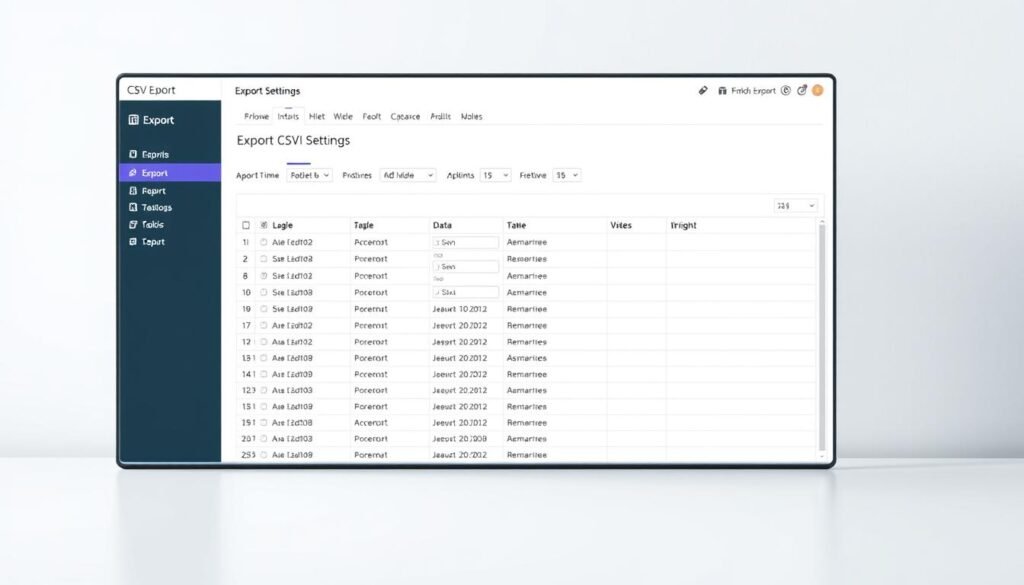
When exports fail repeatedly, streamlining the view is the fastest way to restore reliable file delivery. Simplify logic, then validate with monitoring so changes stick.
Simplify filters and remove unnecessary virtual columns
Reduce complexity first. Collapse overlapping conditions and pre-filter at the source. Remove redundant virtual columns so the view evaluates fewer expressions per row.
Use monitoring to find slow ExportView operations
Open Editor > Manage > Monitor > Performance Profile > Launch Performance Analyzer. Review ExportView entries and click the binoculars icon to inspect slow steps. Even limited detail helps you prioritize fixes.
Choose the right data types and consistent settings
Normalize numeric and text types so filters run faster and the file renders correctly downstream. Standardize locale and action-level setting values and record them in your runbook.
- Persist heavy computations upstream to stop per-row recalculation.
- Profile table size and partition runs when thresholds are reached.
- Create a lean export layer with only essential columns.
| Area | Action | Benefit |
|---|---|---|
| Filters | Collapse and pre-filter | Faster evaluation, fewer timeouts |
| Virtual columns | Materialize upstream | Lower per-row cost |
| Monitoring | Use Performance Analyzer | Targets biggest bottlenecks |
Run load tests with representative filters before automation. Establish a cadence to review ExportView after schema or logic changes so regressions are caught early and recurring issues are avoided.
API and format pitfalls: mapping data, labels, and selected columns

APIs that return coded answers can hide important context unless you request labels explicitly. If your payload sends numeric codes, downstream reports and visualization break. Include {"format":"csv","useLabels": true} to get human-readable choice text.
Labels vs numeric values
Use labels for clarity. Set useLabels to true so the csv contains readable answers instead of IDs. This speeds analysis and reduces mapping errors.
Selecting columns reliably
Validate the response schema before indexing fields. A KeyError('result',) indicates the JSON shape differed.
- Check HTTP status and headers before parsing the body.
- Request only needed fields:
{"format":"csv"}and a minimal payload, then expand. - Verify questionIds or column identifiers against the current schema to avoid empty files or odd responses.
CSV file locale and setting
Treat locale as a first-class setting. The locale must be a Text value and match supported identifiers. An invalid or missing locale can halt the job and produce an error rather than a usable file.
| Issue | Action | Benefit |
|---|---|---|
| Coded answers | Set useLabels: true | Readable data in csv |
| Missing keys | Validate schema & log response | Fewer silent failures |
| Invalid locale | Validate type and value | Correct delimiters and decimals |
Conclusion
A consistent preflight makes the difference between a flaky run and reliable data delivery. Start by confirming you run the app while signed in and in a supported browser. Do a small filtered test so any issue surfaces before you scale.
Keep fixes simple and repeatable. Simplify filters and virtual columns, monitor ExportView, and partition large jobs so runs stay under the execution window. Treat leading zeros and formatting as ingestion concerns—verify the csv file contents, then adjust Excel or your parser.
Codify locale, column selection, and labeling rules. On the API side, request labels (useLabels=true), validate response shapes, and log anomalies. Follow this checklist and you’ll reduce failures and deliver files predictably to stakeholders.
FAQ
What common symptoms indicate an export to CSV failed or will fail?
Look for stalled downloads, partial files, error notifications in the app, or exported files that are missing columns or rows. Slow response in the view or repeated timeouts before the file is produced are also clear signs.
Which quick checks should you run before attempting an export?
Verify you are signed in with the correct account, confirm you have view and export permissions, refresh the browser, and try a different browser. Also check that filters and sort settings are intentional and that the view returns results in the UI before exporting.
Why does an export stop after about two minutes when dealing with large tables or complex filters?
Most export mechanisms enforce a short runtime limit. Large result sets or expensive filter expressions push processing past that threshold and the job is terminated. Splitting the query into smaller chunks or reducing filter complexity avoids the timeout.
How do heavy virtual columns or complex filter expressions impact the export?
Virtual columns and complex computed filters increase server work for each row. That slows the ExportView operation and raises the chance of hitting runtime limits or memory pressure. Removing unnecessary virtual fields and simplifying expressions speeds up processing.
Why are unexpected rows appearing in the exported file when using blank value comparisons?
Blank-comparison modes can behave differently between the app view and the export routine. If the export interprets empty, null, or whitespace inconsistently, you’ll get extra rows. Use explicit filters (IS NULL, LENGTH = 0) or normalize data before exporting.
What causes locale-related errors when creating the file?
The export requires a valid locale string to format numbers, dates, and separators correctly. Missing, invalid, or mismatched locale settings can result in a failed export or a file that parses incorrectly in spreadsheet software. Set a supported locale value before exporting.
My phone numbers lose leading zeros after opening the file in Excel. How do I prevent that?
Spreadsheet apps like Excel interpret numeric-looking fields and drop leading zeros. Export the column as text, prefix values with an apostrophe, or set Excel’s column type to Text during import. Ensuring the field is stored as string on export also helps.
Do session state and user permissions affect the ability to export files?
Yes. Exports typically require an active browser session and the right access level. If you’re signed out, using an expired token, or lack the export privilege for that view, the operation will fail. Re-authenticate and check role permissions.
How should I handle very large data sets to avoid mid-run failures?
Partition the export into smaller, targeted chunks—filter by date, ID ranges, or segments. Export each subset separately and then concatenate files if needed. This reduces per-job processing time and lowers the chance of timeout or memory errors.
What tuning steps reduce recurring export slowdowns or failures?
Simplify filters, remove unneeded virtual columns, and index fields used in conditions where possible. Monitor ExportView latency to find slow operations and precompute expensive results. Consistent data types and fewer computed fields make exports more reliable.
How can monitoring help prevent export errors before they occur?
Implement instrumentation that tracks ExportView response times and error rates. Alert on rising latency or frequent failures so you can optimize problematic views, adjust quotas, or refactor filters before users encounter errors.
What should I consider when choosing data types and settings for stable file creation?
Use explicit, consistent types for dates, numbers, and strings. Avoid mixing formats in one column. Ensure CSV locale, delimiter, and quote settings match downstream consumers. Clear, consistent typing reduces parsing errors and downstream data loss.
When using the API, how do I get readable labels instead of numeric codes?
Use the parameter that returns labels (for example, useLabels=true) so the response contains human-readable values. This prevents manual mapping later and makes the exported file easier to consume by analysts or marketing teams.
How do I avoid KeyError-like issues when selecting columns via the API?
Ensure the requested column keys exactly match the source schema and that optional columns exist in every record. Validate the response payload structure in a small test call before issuing large exports, and include fallback logic for missing fields. Additionally, establish clear error handling mechanisms to capture and log discrepancies between expected and actual data formats. This will be particularly useful when troubleshooting getresponse custom fields, allowing for a more streamlined process in identifying and fixing issues. Regularly review the validation process to ensure it remains robust against changes in the source schema over time.
What is the correct way to set the CSV locale string to avoid parsing failures?
Provide a valid locale identifier supported by the platform (for example, en-US). Confirm the delimiter, decimal separator, and date formats are consistent with that locale. Test a small export and verify the file opens correctly in your target tool.