

Curious why a clean spreadsheet still breaks your campaign? You upload a file, expect contacts to land in your account, and something slips. Small header mistakes, mismatched values, or a stray cookie policy can stop personalization cold.
This introduction walks you through the new Add contacts view, and explains what stays the same if your interface looks older. The Email column is assigned automatically, and a header named name will map to the Name field without extra steps. Unmatched columns show a “?” so you can Select…, choose Don’t match, or Create a custom field.
Preview shows 20 rows but processes the whole file. That preview limits quick checks, so you will learn how to validate mappings for an email list of any size. We also cover when to use Do not import unmatched columns to protect your data and marketing automation flows.
Key Takeaways
- Follow strict header names to speed mapping and avoid value mismatches.
- Use the “?” marker to decide Select, Don’t match, or Create a field.
- Preview 20 rows, but always verify the full file when validating large lists.
- Protect your account and automation by skipping unmatched columns when needed.
- Check email, name, and note fields before the first upload to reduce rework.
- Understand downstream effects on segmentation, triggered sends, and reporting.
Understand the problem and search intent in the present landscape
Before blaming the platform, confirm your file format, size, and encoding. You must match the uploader's rules to avoid blocked imports and broken mappings.
Key constraints include supported types (CSV, TXT, VCF, XLS, XLSX, ODS), separators (comma, semicolon, tab), and required UTF-8 encoding. Files have size caps: ≤50 MB for most formats and ≤10 MB for XLS. Only the first sheet is read from multi-sheet workbooks.
Every record needs a valid email column. Malformed addresses like "john@aol", "johnaol.com", or "@aol.com" trigger syntax errors and stop data processing. Long or special-character emails also fail.
- Convert Excel number cells to text for dates to preserve YYYY-MM-DD format.
- Predefine the account's custom fields to let headers map automatically.
- Check headers so the Name and other field values map without “?” markers.
| Constraint | Why it matters | Quick fix |
|---|---|---|
| Encoding: UTF-8 | Prevents garbled characters in names and notes | Save as UTF-8 before uploading |
| Single-sheet import | Only the first sheet is processed | Move or copy relevant data to sheet one |
| Email syntax | Invalid emails block processing | Validate and clean addresses beforehand |
| Excel dates | Numbers replace YYYY-MM-DD values | Convert cells to text or format as ISO dates |
Troubleshooting GetResponse custom fields import export issues
Start by confirming that your file type, encoding, and sheet selection meet the uploader's strict rules. Use CSV, TXT, VCF, XLS, XLSX, or ODS with comma, semicolon, or tab separators. Save as UTF-8 and keep files under size limits (50 MB for most formats, 10 MB for XLS). Only the first sheet is read.
Validate the email column carefully. Each contact needs one valid address. Malformed, empty, or >128-character emails cause syntax errors that block rows and skew error reports.
Match headers to existing entries in your getresponse account so columns map automatically. Unassigned custom fields show “?”—pick an existing field, choose Don’t match, or create a new custom field on the spot.
- Normalize default values (Gender: "male"/"female"; Country/Currency lists).
- Trim long text to avoid clipping at 255 characters.
- Format dates as YYYY-MM-DD and convert Excel number cells to text.
- Set phone prefix rules during assignment and use tag columns (1/0) or add up to 10 tags on import.
Step-by-step: Map columns, match custom fields, and import contacts correctly
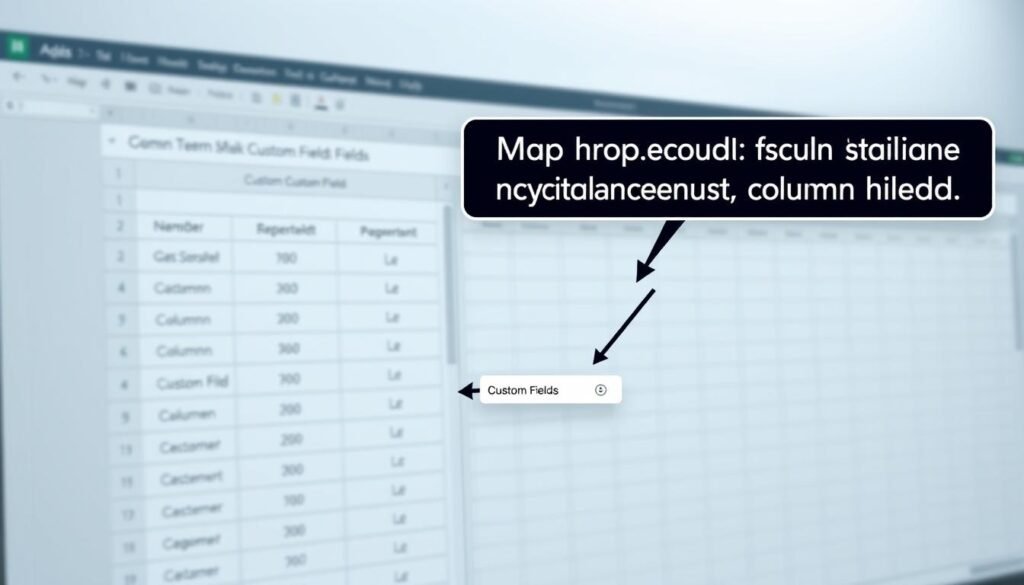
Open Contacts > Add contacts, select From file, and load your CSV or Excel file to begin mapping. The uploader shows a 20-row preview but processes every row after you confirm mappings.
Ensure the email column exists. The Email field maps automatically. The Name field maps only if the header reads exactly name. Unassigned custom fields display a “?” next to their headers.
- For each "?", expand Select… to match an existing custom field, pick Don’t match, or choose Create a custom field.
- When creating a field on the fly, pick the right type (text, number, date, country, currency, gender, phone) and set sensible default values to handle blanks.
- Select Do not import unmatched columns when you want to block noisy columns from entering your database.
- Convert Excel number cells to text so YYYY-MM-DD dates remain intact and downstream automations run correctly.
| Step | Why it matters | Quick action |
|---|---|---|
| Upload & preview | Confirm headers and sample mapping | Open Contacts > Add contacts > From file, then review preview |
| Resolve “?” markers | Prevents misaligned attributes | Select an existing custom field, Don’t match, or Create a custom field |
| Date columns | Excel numeric dates break automations | Convert number cells to text or format as YYYY-MM-DD |
Set up and maintain custom fields to prevent future import/export errors
Plan your contact schema so field types and defaults match incoming data from day one. A clear naming standard and deliberate type choices cut mapping friction and reduce mismatches from third party sources.
Use consistent naming and stable types
Name new entries using lowercase letters, numbers, and underscores (example: favorite_icecream_flavor). This lets your source headers auto-map reliably. Using clear and descriptive naming conventions not only helps in organizing your content but also enhances searchability. For example, if you're cataloging home design inspiration ideas, be sure to reflect that in your naming structure. This practice not only promotes efficiency but also facilitates easier collaboration with others who may be working on similar projects.
When you add a new custom field, go to Contacts >> Custom fields and click Add custom field. Pick the right type—country, currency, date, gender, number, phone, text, or URL—and choose single/multiple or line/paragraph formats.
Edit, delete, and visibility rules
You can edit only user-defined entries; names can’t change once created. If a field is used in forms, filters, or workflows, you cannot edit its type or format. You can change values and visibility, but editing values replaces originals in contact records.
Normalize values and default settings
Define option lists and set sensible default values (up to 255 characters for text). Normalize incoming values—map "USA" to "United States"—so downstream segmentation and reporting remain consistent.
- Standardize nomenclature to enable predictable auto-mapping.
- Choose enumerations for constrained data (gender, currency) and text for free-form input.
- Hide fields from contacts when they are used only for backend logic or cookies tracking.
- Document schema and review fields tied to third party integrations on a regular cadence.
| Action | Why it matters | Quick step |
|---|---|---|
| Name using lowercase & underscores | Enables exact header match and auto-mapping | Use favorite_icecream_flavor style names |
| Pick correct type | Prevents invalid values and broken workflows | Choose country, date, number, or text as appropriate |
| Set defaults & normalize values | Reduces mismatches and fills blanks consistently | Define defaults and map variants (USA → United States) |
Export-ready data hygiene: lists, contacts, and field values that just work
Prepare your lists so a single, well-formed sheet moves cleanly between systems.
Keep the first sheet simple and encoded as UTF-8. Most tools read only the first worksheet, so export a single sheet with a clear header row. Include exactly one properly formatted email per row in the email column.
Use ISO dates (YYYY-MM-DD) and convert Excel date cells to text before you save. Constrain enumerations—Gender, Country, Currency—to the exact allowed values in your getresponse account so values are accepted without manual fixes.
- Avoid multiselect outputs; split into binary columns or normalized text fields.
- Provide tags via a header with 1/0 values or plan to apply up to 10 tags during mapping.
- Sample rows for malformed emails, empty cells, and strange characters before sharing with third party teams.
| Checklist item | Why it matters | Action |
|---|---|---|
| Single UTF-8 sheet | Prevents partial reads from multi-sheet files | Export sheet one only; save as UTF-8 |
| Email column | One valid email per row enables clean data processing | Validate addresses and fix syntax errors |
| ISO date format | Preserves dates across systems | Convert Excel dates to text as YYYY-MM-DD |
| Constrained values | Matches account enums and avoids rework | Normalize Gender/Country/Currency to allowed values |
Document your data processing rules and keep an audit trail. That way, operations and analytics can reproduce the same outputs for recurring campaigns and troubleshoot discrepancies fast.
Conclusion
Close the process loop with a short checklist that guarantees headers, encoding, and list structure match your account schema.
Make these quick checks: save as UTF-8, limit file size (≤50 MB; ≤10 MB for XLS), use the first sheet only, and keep one valid email per row. Format dates as YYYY-MM-DD and convert Excel date cells to text.
During mapping, let exact header matches do the work. Fields marked with a “?” prompt you to match, skip, or create a new custom field. Apply up to 10 tags or supply them in the right column format to preserve values and segmentation.
Document standards and enforce them so your list, contacts, and schema scale reliably for marketing automation. For community tips, see this custom fields GetResponse guide.