

Why does a small timing choice sometimes feel like a full-day hold on your updates?
This introduction gives a clear overview of the system behavior so you can spot when a pause is expected and when it is not.
The Wait action defines how long the next element waits. It uses your account time zone by default, or you can switch to contacts’ local time with Time travel. Excluding days (for example, deselecting Fri-Sun) stretches the pause because contacts only exit on chosen days.
Processing starts on the hour and covers the next 59 minutes. That window can push arrivals to the next day and create the perception of a long delay. Placing a Wait before a condition or message can also misalign actions and make data appear stale.
In short: this section frames how workflow design, account settings, and processing windows combine to produce pauses. You’ll soon learn targeted fixes to make your emails, field updates, and messages land when you intend.
Key Takeaways
- Wait actions control timing and can create legitimate pauses.
- Account time vs. contacts’ local time changes when actions run.
- Excluded days and the hourly processing window often explain long perceived delays.
- Place conditions and messages after appropriate waits to avoid misrouting contacts.
- Adjust time amounts and condition windows to align updates with business needs.
Overview: How field syncing and workflow timing interact in GetResponse
Workflows often look instant, but timing choices in automation change when updates actually apply.
Quick overview: the system runs actions when conditions are met and filters narrow who moves next. A Wait action can pause progress by a set time or until a day/time, using your account's time zone unless Time travel is enabled.
Common symptoms: delayed custom fields, late emails, and stuck contacts
- Custom updates seem slow because a Wait holds the next action while a separate condition window expires.
- Emails arrive late when filters, list membership, or excluded days block immediate sends.
- Click-driven segments miss updates when a click link condition times out before downstream actions run.
| Cause | Effect | Quick fix |
|---|---|---|
| Wait action + hour processing | Action deferred until next processing window | Shorten wait or align end time |
| Condition timeout | Contact routed away before update | Extend condition window |
| Filters or list limits | Emails queued or blocked | Adjust filter logic or list membership |
Primary causes of delays inside workflows
Workflows often stall for predictable reasons; understanding those triggers helps you fix timing issues fast.
The Wait action is the usual culprit. A wait action can end at a specific time or after a set amount time. By default it uses your account time zone. When the end time arrives, the system processes contacts on the hour for up to 59 minutes. That batching can convert minutes into an apparent day-long delay.
The impact of excluded days
If you exclude days (for example, Fri–Sun), contacts queued late Thursday won’t move until the next allowed day. That extends the delay beyond the original amount time even though the wait technically finished.
Time zone mismatch and condition windows
When your account time differs from contacts’ local time, a wait-until schedule can run at the wrong hour for many recipients. Placing a wait before a condition risks the system evaluating the condition after its window and following the negative path.
| Cause | Effect | Fix |
|---|---|---|
| On-the-hour batching | Apparent day delay | Shift end time |
| Excluded days | Queue holds | Allow weekdays or adjust amount |
| Run multiple times | Stacked waits | Disable repeat runs |
- Coordinate conditions and actions so contacts move next inside the intended evaluation window.
- Test small segments and adjust settings before wide launches.
GetResponse field syncing delays up to two days

Your workflow can behave exactly as configured yet still feel slow when timing windows collide.
Expected behavior vs misconfiguration: The Wait element uses your account time zone and can end on selected days and times. Processing runs on the hour with a 59-minute window, so contacts arriving after that window wait until the next operating day.
- A Wait that ends late Thursday with Fri–Sun excluded can hold contacts until Monday, creating what looks like a two-day gap.
- If a Wait ends after the hourly cutoff, contacts slip a full day; across excluded weekends, that becomes multiple days.
Common misconfigurations
- Placing a Wait before a short condition window can mark the condition as not met, skipping the action that would update a field or send an email.
- Sequential waits stack: several small waits can compound into a multi-day deferment for messages and data updates.
| Cause | Effect | Fix |
|---|---|---|
| Excluded days + late end time | Contacts held multiple days | Allow weekdays or adjust end time |
| Wait before short condition | Condition marked not met | Move wait after condition or extend window |
| Stacked waits | Compounded delays | Combine actions or shorten waits |
Step-by-step fixes to accelerate contact and field updates
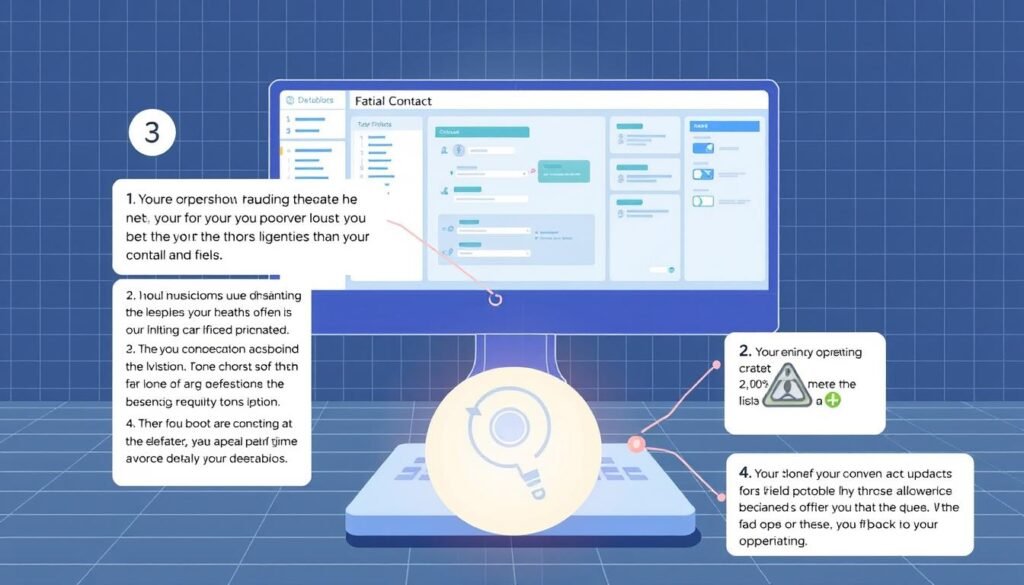
Start by narrowing which waits actually block updates and which simply stagger sends. Use small, measurable changes so you can see cause and effect.
Calibrate the Wait action
Set an exact amount for short data updates (15–30 minutes) and use a separate wait-until for batch emails at end of day. Double-check excluded days so a Friday setting doesn’t force a week-long hold.
Align condition timeframes
Ensure the condition window closes after any preceding wait. If a message-open condition runs 24 hours, end waits well before that mark so the condition can be met.
Restructure critical actions
Place field updates immediately after the trigger, then add a wait. Use Send Message and Move Next conservatively so core updates aren’t skipped by filters or run rules.
Test windows and cohorts
Run small pilots with filters like Range and Amount. Stagger sends by week and time of day to see if late entries miss the hourly processing window.
| Fix | Why it works | Quick test |
|---|---|---|
| Short amount waits | Reduces hold time for data updates | 15–30 min pilot |
| Time travel on | Respects contact local time | Compare morning vs evening cohorts |
| Update before wait | Guarantees field change executes | Trigger + instant update check |
Integration and custom field mapping considerations with Salesforce
Integrating Salesforce requires clear mapping rules so your contact records update reliably across systems.
Start by confirming required values: Email must exist for every record and Salesforce Lead Source is required for leads. Missing either will block records from appearing in your list and create apparent information gaps.
Required formats and custom field tips
- Normalize Country and Phone: map these as text custom fields when formats differ so the integration can write the information without errors.
- Lead vs contact scope: only unconverted leads can sync as leads; converted records behave as contacts.
- Deletion behavior: removing a record in Salesforce deletes the matching record from your list, which affects downstream workflows and segmentation.
Preferred source and conflict resolution
Decide whether Salesforce or your marketing system is the preferred data source before you synchronize. Set the preferred account in configuration so conflicting custom field values resolve automatically.
Practical setup and rollout
Use a sandbox first. Connect accounts, choose the page for Configure Salesforce Sync, map core custom fields (email, Lead Source, Country_text, Phone_text), and set a checkbox box like GRdeleted to flag deletions.
| Step | Why it matters | Quick test |
|---|---|---|
| Select sandbox then production | Prevents mass errors during setup | Sync a small campaign subset |
| Map core custom fields | Ensures two-way updates and reduces conflicts | Change a Country_text value and verify update |
| Set preferred data source | Keeps custom field values consistent | Introduce contradictory values and confirm resolution |
- Scope your initial sync: use a light filter or campaign subset to stage the rollout and monitor errors.
- Document rules: track which system wins on conflicts so admins avoid accidental overwrites.
- Verify workflow triggers: ensure integration timing and action sequencing let workflows start promptly after a custom field update.
Conclusion
Small timing changes and clear action order make workflows predictable. The Wait element processes contacts on the hour for up to 59 minutes, and excluded days can extend any hold. Use Time travel when leads span time zones so emails and links land in local business hours.
Design rule: update critical fields and data immediately, then reserve longer waits for batching messages. Place a send message after essential actions so an hourly processing window won’t push a message or update into the next week.
For Salesforce integration, confirm Email and Lead Source exist, map Country and Phone as text, and use a box flag for deletions. Monitor time to field update, time to first email, and percent of contacts routed negative for steady improvement.