
Curious why sync gaps, timeouts, or mismatched consent fields break your email flows? You’re not alone. This guide gives clear, technical facts about how the connector behaves in production, the pace of the base 24-hour import, and when live sync actually updates contacts, products, or orders.
You’ll see the hard limits that cause most failures: a 15‑second API response window and 100‑entity batch sizes. We also cover the exact setup order that avoids handshake failures, common permission errors tied to Webservice rights, and simple fixes such as a module reset or creating groups for multistore shops.
Expect practical guidance on consent mapping, unsubscribe behavior, ecommerce reporting nuances, and what Web Connect can track for onsite engagement. Read on to turn confusing sync behavior into clear operational steps for better email marketing and website commerce reporting.
Key Takeaways
- You’ll learn why the connector runs a 24‑hour base import and when live sync applies.
- API limits—15s per call and 100 entities—are the main causes of timeouts and partial imports.
- Follow the install → generate Access Key → configure sequence using HTTPS and full Webservice permissions to avoid handshake failures.
- Consent checkboxes in the shop don’t map one-to-one to the consent field, which affects unsubscribe flow.
- Multistore 500 errors often mean missing groups; a module reset can clear many connection faults.
- Web Connect adds purchase, visit, and abandoned cart tracking plus onsite popup and web push options.
What this How-To covers and who should use it
This guide is for ecommerce marketers, admins, and developers who need to diagnose sync gaps, stabilize imports, and keep campaign data fresh.
You’ll learn how contacts, products, and order data move into your email platform. The base import runs on a 24‑hour cadence, while the plugin can enable live sync for near‑real‑time updates.
Who benefits: small-to-enterprise store owners running newsletters, automation journeys, or abandoned cart recovery who need reliable data on the website and in their campaign lists.
- Practical fixes to speed up imports and reduce stale segments.
- Examples of common config errors (HTTPS, Webservice, permissions) and how to correct them.
- Clear division of responsibility: where to change settings in the email platform vs. the shop admin.
| Audience | Main Goal | Where to Configure |
|---|---|---|
| Marketers | Keep lists and automation flowing | Email platform (lists, automations, templates) |
| Admins | Stabilize imports and permissions | Shop admin: SSL, Webservice, user rights |
| Developers | Diagnose timeouts and large catalog syncs | Server settings, API endpoints, module logs |
PrestaShop and server prerequisites that prevent most integration errors
Before you tweak code or settings, confirm your stack meets the supported versions and performance SLA.
Supported setups: run PrestaShop 1.7.x on PHP 7.4 or PrestaShop 8.x on PHP 8.1+. Upgrading to the newest PHP usually improves execution time and reduces timeouts.
Critical performance limit: every API call must respond within 15 seconds. Slow queries, heavy modules, or poor DB performance cause failed calls.
- Imports use 100-entity pages per request; a 10,000 product catalog needs many sequential calls.
- Full ecommerce imports run contacts → products → orders in that fixed order, so a single bottleneck delays completion.
- Keep FPM, Opcache, and PrestaShop cache layers healthy to speed repeated requests.
- Monitor server I/O and CPU while customers browse to ensure available resources for API access.
Note: track endpoint performance with synthetic checks so you catch regressions after deployments and keep email lists and automation data fresh.
Set up in the correct order to avoid connection failures
A precise setup order stops the most common connection failures when linking your store and email tools. Follow three clear steps so the handshake completes cleanly and your lists, forms, and automation can start syncing.
Install plugin, generate Access Key, then configure in GetResponse
Step 1: Install the module from PrestaShop’s Modules Manager. Do this before creating any keys or connecting from the marketing account.
Step 2: In Advanced Parameters > Webservice, set Enable Webservice = YES, generate the Access Key, set Status to YES, and grant All permissions including the getresponse_module row. Save the key securely.
Use HTTPS shop URL and enable Webservice before connecting
Step 3: In your email platform go to Integrations and API > PrestaShop > Connect. Enter the HTTPS shop URL and paste the Access Key.
- Always use an HTTPS URL — non-HTTPS often causes certificate and connection errors on the first page.
- The plugin has no local settings; scope, mapping, and live sync are set in the marketing account.
- If you must reconfigure lists, open the Configure screen in the email platform rather than changing PrestaShop files.
Pro tip: Keep form choices, list names, and confirmation settings ready before you hit Configure. Store the access key in a secure vault and rotate keys periodically for better security.
GetResponse PrestaShop integration issues and limitations
Know the difference between the base 24‑hour import and real‑time streams so you can schedule marketing around true data freshness.
The system runs a daily full import by design. That job moves contacts, products, and orders in sequence and finishes only after all batches complete. If the full import is still running, live sync will not backfill missed records.
Batch sizes, timeouts, and large catalogs
Each API call fetches up to 100 entities. A 10,000‑item catalog needs 100 calls; 50,000 SKUs need 500. Calls must finish within 15 seconds or they time out.
- Expect a 24‑hour cadence for baseline updates; enable live sync for fresher products or orders only within your chosen scope.
- Timeouts during heavy batches cause partial imports and gaps in emails, abandoned cart flows, and product-based automations.
- Monitor logs for repeated 500s or gateway failures and disable heavy processing tools on product endpoints during initial imports.
Plan send windows after imports stabilize. That ensures product recommendations and order filters reference current data and keeps your email marketing reliable.
Troubleshooting connection errors and 500s after module install
When a connection fails during setup, a fast reset often restores normal sync and clears corrupted states.
Resetting the module from Modules Manager
Start with a safe reset: go to PrestaShop > Improve > Modules > Modules Manager > the module > arrow > Reset. This clears transient faults without touching product data.
After reset, reopen the connection page in your email account and re-enter the HTTPS page URL and Access Key to re-establish trust.
Multistore caveat: create a group for each store to avoid 500
In multistore setups, a 500 after install often means missing store groups. Create a group per store before reconnecting.
- Confirm Access Key status is YES and permissions were not revoked.
- Enable debug only if API routes show 500s to capture stack traces; disable debug in production afterward.
- Temporarily disable non-essential modules to test for conflicts and check server logs for fatal errors.
| Check | Action | Result |
|---|---|---|
| HTTPS URL | Verify on the connection page | Secure handshake |
| Access Key | Confirm status and permissions | Authorized API calls |
| Multistore groups | Create group per store | Prevents 500s |
Access Key and permissions: the single biggest cause of “access denied”
A single misconfigured API key is the most common root cause of "access denied" errors during sync. Fixing the key and permissions usually restores full access for email, contact, product, and order imports.
Create the key in Advanced Parameters > Webservice > Add new webservice key. Set Enable Webservice = YES at the global level and set the new key's Status = YES before connecting from your marketing account.
Grant All permissions for every resource and explicitly check All in the getresponse_module row. Missing a single GET permission will block that entity's sync and cause partial imports.
- Store the key securely in your account vault and rotate it when roles change.
- Confirm the website page uses HTTPS and matches the URL entered in the email tools connection.
- Plan key rotation during low-traffic windows—changing the key requires reconnecting the account.
Note: If products sync but contacts or orders fail, review entity-level permissions first. When in doubt, reissue the key and retest; it’s faster than chasing scattered permission gaps across multiple resources.
Choosing import scope: contacts, products, orders — and what you’ll miss
Choose the import scope carefully—each option changes which events and product details reach your marketing tools.
Three clear options exist. You can import full ecommerce data (contacts, products, and order history), contacts only, or products only. Pick the one that matches your immediate campaign goals.
Contacts only vs. products only vs. full ecommerce data
Contacts-only fills a list for email sends and automation but omits catalog items and sales history. Use this when you only need messaging without product blocks.
Products-only syncs catalog data so emails show dynamic product blocks and recommendations. It does not add contact or order events, so automation that relies on purchases will not fire.
Full ecommerce data includes contacts, products, and orders. This option enables post-purchase automations, order-based segments, and richer email marketing.
Live sync respects your chosen scope
- Live updates mirror the selected option: products-only sends live product changes but not contact or order events.
- Decide whether to import only customers who opted into marketing or all customers; U.S. law requires valid permission for emails.
- Pick the target list up front to prevent re-segmentation later and keep automation triggers consistent.
| Scope | Main Benefit | What’s Missing |
|---|---|---|
| Contacts-only | Ready lists for email campaigns | No product catalog, no order history |
| Products-only | Dynamic product blocks in emails | No contacts or order events for automation |
| Full ecommerce | Orders, customers, and catalog for full automation | Longer import time for large stores |
Custom fields mapping constraints and safer import choices
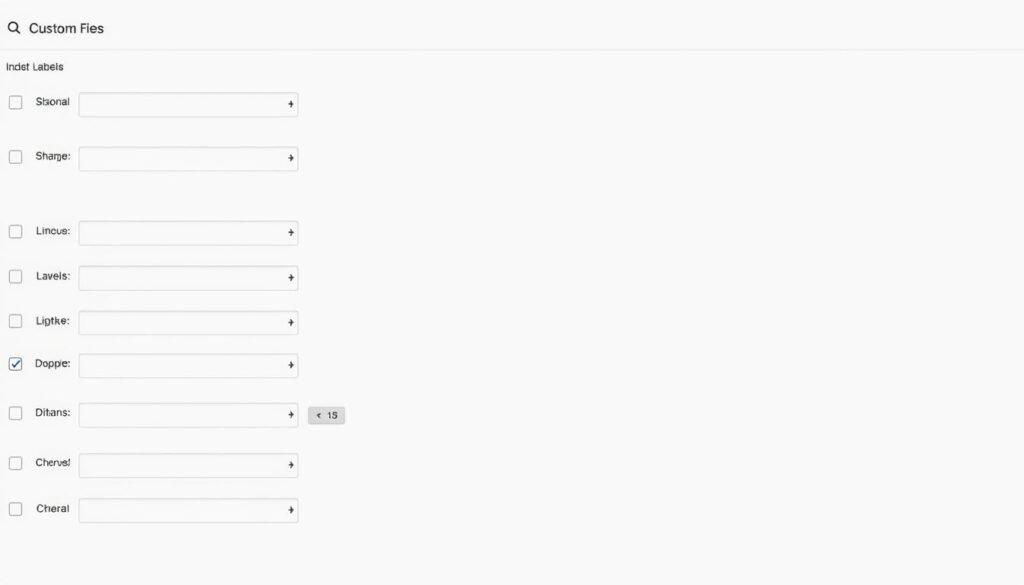
A clear field strategy keeps your email segments accurate and your campaigns reliable. Decide which columns matter before you import to avoid rework.
Map to predefined fields or create new custom fields first. Creating missing fields before import preserves attributes used in segmentation and personalization for emails.
Predefined vs. new custom fields
You can import selected fields or all columns. Use the option under the Import button to skip columns marked with “?”. That avoids pulling low-quality values into your account.
Safer choices and examples
- Map customer group, last order date, total spend, and product category preferences as reliable examples for targeted email marketing.
- Create any missing field before import; retrofitting later often needs reimports or manual edits.
- Standardize naming between forms and the shop page to simplify reporting and automation.
- Validate with a small test import, then run the full import when fields render correctly in templates and segments.
Tip: Keep a mapping document per page and revisit custom fields quarterly to prune unused entries and reduce data noise.
Consent and unsubscribe behavior: how it actually syncs
Consent signals flow both ways, but they are not identical across systems. Treat the shop's marketing flag and the email platform's Consent field as separate controls. Enabling a shop-level marketing checkbox during import will not populate the Consent field inside the email service.
Marketing consent in the shop does not map to the Consent field
Why this matters: a customer who checked Email Marketing Consent on the website may still lack the formal Consent field in your mailing tool. That mismatch affects which contacts appear in campaign lists and which emails you can legally send.
When unsubscribes remove contacts and when they don’t
The systems behave differently on opt-outs. If a customer withdraws marketing consent in the shop, the contact will be removed from the email account to honor that choice.
Conversely, if a contact unsubscribes inside the email tool, the store account remains. The shop's marketing flag is cleared, but the contact record is not deleted from the website database.
- Treat the shop flag and the email Consent field as separate — enabling one does not populate the other.
- If marketing consent is revoked on the shop page, the contact is removed from the email list to respect privacy.
- Unsubscribes made via email do not delete the customer account; they only clear marketing permission on the site.
- Keep proof of permission for compliance and avoid re-adding suppressed contacts during periodic imports.
- Provide a page-level preference center so customers can adjust newsletters and email choices without full deletion.
Example: a customer unsubscribes from newsletters in your email tool. Their website account stays active, but the marketing consent flag becomes NO to prevent future marketing emails.
| Action Taken | Effect in Email System | Effect in Website |
|---|---|---|
| Customer opts in on website | May not set email Consent field | Marketing flag = YES |
| Customer revokes consent on website | Contact removed from email list | Marketing flag = NO |
| Contact unsubscribes in email tool | Marked unsubscribed / suppressed | Marketing flag cleared; account kept |
Note: document this asymmetry for legal teams and train customer service so they can explain what each unsubscribe does. Design automations around suppression lists and page-level preferences to avoid accidental re-adds.
Ecommerce features: what works, what’s plan-limited, and practical workarounds
Ecommerce feature sets differ by plan, so know what your account unlocks before building automations. That prevents wasted setup time and broken flows when data or AI features are gated.
Abandoned cart, order tracking, and recommended products are available in most setups, but advanced AI recommendations may require a higher tier. Confirm your plan before relying on those features for high-volume campaigns.
Abandoned carts, order tracking, recommended products
- Abandoned cart automation depends on timely product and order imports; enable full ecommerce data if you need reliable journeys.
- If AI recommendations are gated, use a simple proxy: top-sellers or category bests as a personalized segment.
- Build retry logic: have automation resend cart reminders if order events don’t arrive within a set window to handle slow imports.
Prices and product display choices
Choose net vs. gross prices for summaries and reports so emails match accounting and checkout expectations.
Configure product name display to mirror your catalog taxonomy for consistency across your website and email templates.
| Feature | Plan risk | Practical workaround |
|---|---|---|
| AI recommendations | Higher-tier required | Use top‑seller segments |
| Dynamic product blocks | Render delays on large catalogs | Limit SKUs per block |
| Price display | Currency/format mismatch | QA during staging |
- Use sales funnels selectively when data freshness is reliable.
- Validate price display and currency during QA—mismatches drive cart abandonment.
- Measure sales lift per automation and page to focus on your highest‑impact flows first.
Web Connect, forms, and web push: tracking and onsite messaging limitations
Web Connect adds onsite tracking for purchases, visits, and abandoned carts so you can trigger timely automations and remarketing. Install the small code snippet to capture events that feed email campaigns and on-site messaging.
Installing Web Connect for purchases, visits, and abandoned cart tracking
Install the web code on staging first. Verify that purchase and cart events post correctly and that visit contexts (product page vs. blog) are recognized. Test automation triggers to ensure events fire when expected.
Form placement on store pages and popup/web push constraints
Place forms on high-intent pages—product pages, blog posts, or exit pages—to grow lists without hurting conversions. Use page-level placement to serve the right message at the right time.
- Push and popup need opt-in: web push requires visitor permission and may be blocked by some browsers.
- Respect consent: align tracking with your cookie banner and update privacy disclosures for marketing features.
- Protect checkout flows: use exit-intent or slim bars on checkout pages to avoid interruptions.
- Device limits: iOS/macOS reduces push reach—combine push with emails and SMS for coverage.
| Feature | Benefit | Constraint |
|---|---|---|
| Web tracking code | Real-time events | Needs correct placement and testing |
| Popup forms | Faster list growth | Can harm conversion if misused |
| Web push | High-engagement channel | Requires opt-in; browser limits |
Tip: monitor push vs. email metrics to see which channel your visitors prefer. Coordinate newsletters and onsite messages so customers see a single, consistent offer across pages and emails.
Performance tuning to prevent timeouts during large imports

Plan before you start. When product counts grow, API calls multiply—estimate wall-clock time for the first full import so you don’t schedule sends too early.
Catalog sizing, server capacity, and staged imports
Profile your catalog to count batches: each call handles up to 100 entities and must finish within 15 seconds. Use that math to forecast total time.
- Scale PHP workers and DB capacity during initial imports to keep each call under the time limit.
- Stage imports: sync core categories first, then long-tail products to reduce peak load on endpoints.
- Use opcode caching, HTTP keep-alive, and CDN for static assets to lower API overhead.
Monitoring rolling syncs and fixing slow endpoints
Audit endpoints with sample API calls and profiling tools. Remove heavy joins or hooks that slow responses.
Gate automation until the full import flag is set. For example, pause order-based automation if the orders endpoint lags and run product promotions that have completed.
| Focus | Action | Result |
|---|---|---|
| Catalog | Profile batches | Accurate time estimate |
| Server | Scale workers | Fewer timeouts |
| Monitoring | Sample APIs | Faster bug fixes |
Security and compliance tips for U.S. ecommerce businesses
Prioritize secure connections and clear permission practices before you import or start campaigns.
Always use HTTPS in the URL you enter during setup. Enforce HSTS on your website to prevent mixed-content errors that break API calls. This protects customer information and prevents dropped requests during syncs.
Treat the Access Key like a password. Generate it in Webservice, store the code in a secure vault, rotate keys regularly, and revoke old keys when roles change. Limit who can view or edit keys via role-based access.
Maintain explicit permission on each list. Technically you can import customers without marketing consent, but U.S. law requires valid consent to send commercial email. Document consent sources and honor suppression lists.
- Log and monitor failed API attempts to detect credential leaks.
- Include unsubscribe links in all emails and process requests promptly to meet CAN-SPAM rules.
- Publish a clear privacy page and a preference center on your website so subscribers know what to expect from newsletters and marketing.
- Keep modules and site code updated to reduce compromise risk.
| Risk | Action | Business Result |
|---|---|---|
| Unencrypted URL | Switch to HTTPS + HSTS | Fewer connection failures; safer data |
| Key compromise | Rotate/revoke key; limit access | Reduced attack surface; faster recovery |
| Missing consent | Document permissions; honor suppressions | Compliance with US email laws; lower complaints |
When to switch plans or consider alternative ecommerce tools
Decide when to upgrade by matching feature gates to revenue goals and workflow needs. Start by listing which automations and merchandising features must run reliably today.
Small shops with simple newsletters often keep costs low; growing stores that rely on automated journeys and product recommendations need more.
Plan gating for automation, recommendations, and transactional features
If you depend on multi-step automation or AI product suggestions in every email, verify your plan includes those capabilities. Higher tiers frequently unlock advanced ecommerce tools and deeper marketing features.
- Example: If product recommendations appear in every promotional email, confirm your plan supports dynamic blocks before you build campaigns.
- Factor sales funnels and onsite widgets into ROI: heavy use may justify a higher tier.
- For transactional emails at scale, check quotas and delivery SLAs to avoid delays.
| Need | When to Upgrade | Practical Outcome |
|---|---|---|
| Multi-step automation | Workflows exceed basic plan limits | Reliable branching and triggers |
| AI recommendations | Personalization required across emails | Higher conversion from tailored products |
| Sales funnels & widgets | Onsite funnels drive significant traffic | Better lead capture and conversion tracking |
Run a proof of concept on a higher tier before full migration. Measure conversion lift, email performance, and true cost per sale. If advanced automations drive measurable sales, the upgrade pays for itself; if not, consider specialized ecommerce-focused ESPs that match catalog depth and merchandising logic at a lower total cost.
Recovery checklist: quick fixes to get data flowing again
When sync breaks, a short recovery checklist gets your email flows and product data moving again.
Start with the basics: confirm your website URL is HTTPS and resolves without redirects or certificate warnings. SSL or redirect faults often block the initial handshake.
Step-by-step quick actions
- Reset the module in Modules Manager to clear transient states, then reopen the connection page on the marketing tools.
- Reissue the Access Key: set Status = YES, enable Webservice globally, and grant All permissions including the getresponse_module row.
- Recheck settings: choose import scope, target list, forms behavior, and confirmation rules before a fresh import.
- Run a reimport and monitor batch completion times; stage large products or orders to stay under the per-call time limit.
- Submit forms on affected pages to verify captures land in the correct list and that code still fires for tracking events.
- Only enable live sync after the full import finishes to avoid mixed states between emails and automations.
Finish by sampling emails—confirm product names, prices, and contact fields render correctly. Log timings and document the recovery steps so you can repeat them faster next time.
Conclusion
,
Finish strong: verify the setup order, HTTPS URL, Webservice status, and the Access Key before you run a full import.
Plan around the 24-hour base cadence and use live sync where timely product or order events matter.
Respect the 15-second response and 100-entity batch limits; tune your website and endpoints to prevent timeouts.
Map fields carefully, skip low-quality columns, and keep lists and newsletters permission-compliant for U.S. law.
Keep a short runbook: reset the module, reissue the key, reimport, then validate sample emails and automation triggers.
With a clean integration, steady data, and measured automation, your email marketing will scale with less firefighting.