

Can a powerful all-in-one marketing platform feel both overwhelming and essential at once? That tension is common. You need a clear path from signup to results. This intro shows where complexity hides and how you can reclaim time and clarity.
Here’s the quick picture: the dashboard is fully customizable, and the tools menu bundles email marketing, autoresponders, landing page builders, forms and ecommerce. Many people find the setup busy at first, yet the same layout can speed workflows once configured.
In this piece you’ll get concise steps for weekly tasks like newsletter creation, workflows, and analytics. We’ll highlight useful AI helpers for email drafts and subject lines, and when to use manual controls for accuracy.
Key Takeaways
- Follow a step-by-step dashboard setup to reduce clicks and confusion.
- Prioritize weekly features: email campaigns, autoresponders, landing pages, analytics.
- Use AI generators for drafts but keep manual checks for precision.
- Accessibility settings and keyboard shortcuts improve team productivity.
- Compare ease of use and pricing in a short review to match your growth stage.
Why users say the GetResponse interface feels complex right now
Centralized marketing suites pack powerful features, but they can hide the quickest paths for routine work. When email, automation, landing pages, ecommerce, webinars, and reports live in one place, the learning curve grows. Newcomers often want speed-to-value: send the first campaign and set a repeatable workflow fast.
Evaluation should focus on discoverability and clicks. Track how many steps it takes to create a newsletter, segment a list, or build a landing page. Count clicks and note unclear defaults.
The all‑in‑one scope brings trade-offs. For busy teams, centralization cuts integrations but raises on‑screen choices and cognitive load. Third‑party tests show leaner options like ConvertKit are easier for beginners, while deeper platforms serve complex campaigns better.
- Common friction: finding the right tools in nested menus and choosing AI vs. manual flows.
- Practical fix: surface 3–5 Quick Actions on your dashboard and document launch steps.
- Consider subscriber scale: larger lists need more segmentation steps and hygiene work.
Measure 'ease' over time. Define internal criteria (time to first email, steps to segment subscribers) and track improvement as you customize the workspace.
Onboarding and the customizable dashboard: first steps that shape usability
Start your setup by shaping the dashboard so routine work takes fewer clicks. A focused workspace reduces friction and lowers time spent hunting for core features.
Configuring widgets, Quick Actions, and the Tools menu for faster access
Add Quick Actions and New Contacts widgets first. They let you jump straight into "Create newsletter," "Create autoresponder," or "Create workflow" with one click.
Document the Tools dropdown in your SOPs so teams know where Email, Automation, Contacts, and Builders live. That saves time and keeps new users from hunting.
Common friction points during setup and how to streamline them
Decision overload slows teams. Decide up front when to use the AI builder versus manual editors so campaigns stay consistent.
During week one, limit scope: pick one email objective, one list hygiene task, and one page. Measure time-to-complete and iterate.
Expert tip: create role-based dashboards for teams and agencies
Map an onboarding checklist per role—marketing ops, copywriter, designer, account manager—and pin each person's top features. Add a "Recently edited" widget or bookmarks for quick re-entry.
| Setup item | Action | Benefit | When |
|---|---|---|---|
| Quick Actions | Add Create newsletter and Create workflow | Reduce clicks, faster launches | Day 1 |
| Tools dropdown | Document Email, Automation, Builders | Less hunting, consistent SOPs | Day 1–3 |
| Calendar view | Introduce scheduling and autoresponder overview | Align sends and avoid overlap | Week 1 |
Email marketing toolkit: from AI newsletter creation to templates and A/B testing
A focused toolkit cuts production time and raises performance. Create newsletters via Tools > Email marketing > Create newsletter and choose manual design or the AI email generator powered by OpenAI.
Using the AI email generator and subject line assistant to save time
Let the AI draft, then refine. Supply brand prompts for tone and layout, let the generator produce a draft, then edit voice and compliance. Use the subject line assistant to test curiosity vs. value-led lines and keep subject length mobile-friendly.
Working with drag-and-drop design, reusable content blocks, and templates
Pick from 100+ templates built for promotions, digests, and invites. Use the drag-and-drop editor and save headers, footers, and product modules as reusable blocks. This keeps content and design consistent across emails and campaigns.
Setting up click/ecommerce tracking and multivariate tests for higher deliverability and CTR
Enable Click tracking and Ecommerce tracking to follow post-click behavior and revenue. Run A/B or multivariate testing with up to five variants for subject lines or content layouts, select winners, and roll out the best performer.
| Action | Why it matters | When |
|---|---|---|
| AI generator | Speeds drafts from hours to minutes | Every campaign |
| Reusable blocks | Maintains brand consistency | Day 1 setup |
| Multivariate testing | Improves opens and CTR | Ongoing |
Automation without overwhelm: autoresponders, calendar view, and visual workflows
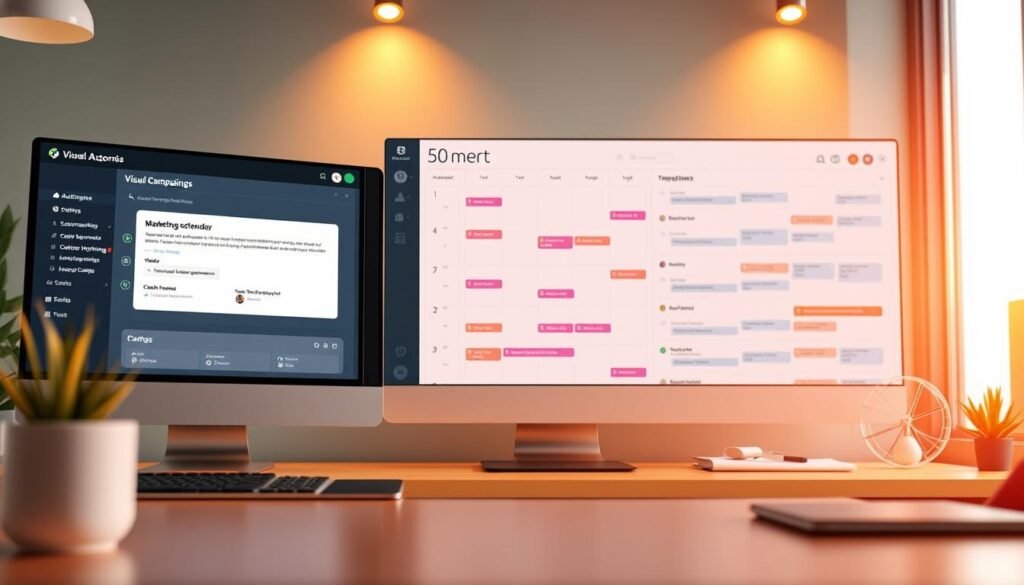
Automation can simplify daily email work if you design clear, small campaigns that map to real subscriber behavior. Start with simple pieces and build confidence before scaling.
Building simple welcome and follow‑up series
Create autoresponders manually or generate drafts with AI, then edit for brand voice. Schedule an immediate welcome, a +2 days value email, and a day‑5 offer as a basic 3‑email welcome series.
Keep it short at first. Validate engagement and expand only when open and click metrics justify extra messages.
Planning sends in calendar view
Use the calendar view to visualize all autoresponders and broadcasts. This single glance prevents gaps and avoids sending multiple emails to the same segment on one day.
Practical tip: block high‑risk dates and stagger sends for overlapping campaigns.
Designing visual workflows for common lifecycle moments
The workflows feature offers templates for abandoned carts, win‑backs, webinars, and post‑purchase followups. Chain Conditions (clicked link, visited URL, purchased), Actions (send email, assign tag), and Filters (segment by plan tier) for precise targeting.
- Start with a 2–3 email welcome series: instant intro, day‑2 value, day‑5 offer.
- Build workflows for cart nudges, dormant subscriber win‑backs, and webinar reminders.
- Use goal nodes (purchase or registration) to measure completion inside the automation.
- Test timing windows (24 vs. 48 hours) and add behavior pauses to avoid over‑messaging.
Review monthly: prune poor branches, refresh offers, and document each campaign flow so teammates can maintain them confidently.
Site and page builders: website, landing pages, forms, and popups
Build landing pages and small websites quickly with a drag-and-drop builder that balances speed and brand control. Use the AI site generator when you need a rapid MVP. Choose templates when you require tighter control over structure and brand fidelity.
The website builder supports text, images, video, forms, and product boxes. Manage pages with global styles so typography and colors stay consistent across the site. Publish pages on a custom domain or a platform subdomain for fast validation.
Embed forms and trigger popups by exit intent or time on page to capture leads without harming UX. Connect forms to segments and tags so new contacts flow directly into your lists and marketing workflows.
| Approach | Speed | Brand control | Best use case |
|---|---|---|---|
| AI site builder | Very fast | Moderate | Rapid MVP or test offer |
| Templates | Fast | High | Consistent landing pages and campaigns |
| Dedicated builders | Moderate | Pixel-perfect | Complex design or high‑traffic sites |
Document a simple design system—logo rules, spacing, and button styles. Reuse content sections like social proof and FAQs. Review mobile views and hide nonessential blocks to speed pages and improve clarity.
Contacts, lists, and segmentation: keeping your data clean and campaigns targeted
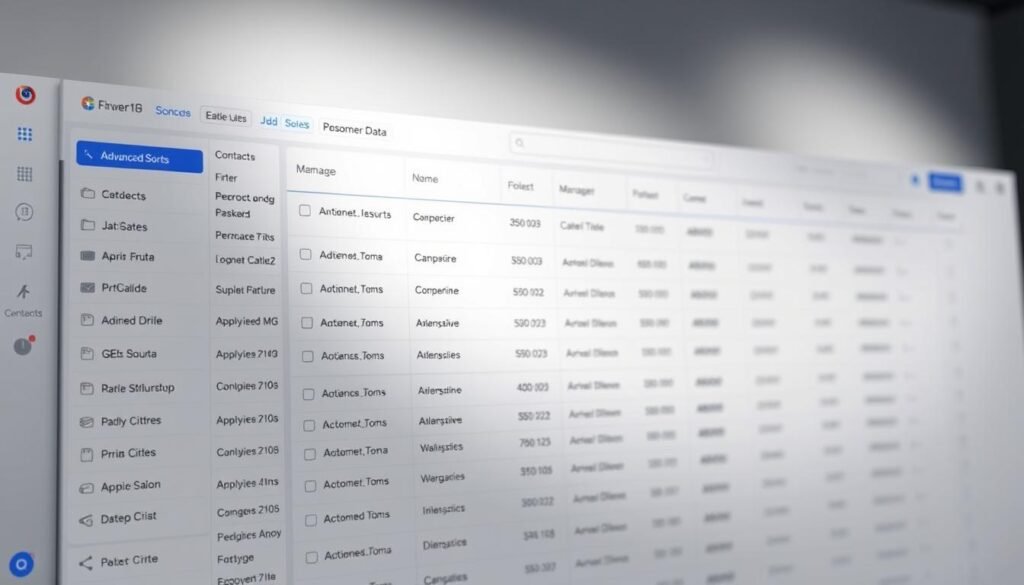
Clean contact data is the backbone of targeted campaigns and higher ROI. Treat your lists as assets: accurate records boost deliverability and improve personalization.
Use the Contacts tool as a single source of truth. Profiles include activity, subscription details, tags, notes, and permissions. Import contacts via manual entry, file upload, or paste while mapping custom fields carefully.
List hygiene, tags, segments, and ecommerce syncing
Maintain list hygiene quarterly. Remove inactive subscribers and apply blocklisting for invalid addresses. That protects sender reputation and keeps costs aligned with ROI.
- Tags & segments: Tag interests and behaviors, then build segments combining tags with activity (clicked, purchased) for precise targeting.
- Rich records: Keep notes, preferences, and consent fields updated so support and marketing share one view of each contact.
- Import rules: Map custom fields consistently during uploads so automations reference accurate data later.
- Ecommerce sync: Integrate Shopify, WooCommerce, BigCommerce, Magento, PrestaShop, or API to enable abandoned cart emails, promo codes, product recommendations, and purchase-based segments.
- Re-engagement: Design a short win-back series before purging; often you can recover valuable subscribers.
- Lifecycle segments: Segment by stage (new, engaged, lapsed) and match cadence to intent.
- Compliance: Use consent flags and region tags (e.g., GDPR) to automate compliant messaging.
| Action | Why it matters | Frequency |
|---|---|---|
| Remove inactive subscribers | Protect deliverability and reduce costs | Quarterly |
| Sync ecommerce data | Unlock product-based segments and revenue tracking | Continuous |
| Apply blocklisting | Safeguard sender reputation | As needed |
Align segments with reporting so every targeted list maps to a measurement plan. That makes campaign results attributable and actionable.
Analytics and optimization: reports, one‑click retargeting, and ROI tracking
Start by tracking clear, comparable metrics so you can spot what actually moves the needle. Reports should surface opens, CTR, conversion rate, and unsubscribe rates for every email send.
Reading core metrics and comparing campaign performance
Use a compact weekly scorecard: opens, CTR, conversion rate, unsubscribe rate, and revenue per email.
Compare two newsletters side‑by‑side to isolate what changed — subject line, layout, or offer — and quantify the impact.
Set Email ROI tracking by placing the tracking code on your post‑purchase confirmation page. That ties revenue back to specific campaigns for accurate attribution.
A/B testing ideas and retargeting non‑engagers for better rates
Run controlled testing: subject clarity vs. curiosity, short vs. long content, single vs. multiple CTAs. Limit tests so each campaign yields one meaningful insight.
Apply one‑click retargeting to re‑message non‑engagers with a tighter offer or different value proposition. This often lifts open and conversion rates quickly.
- Monitor deliverability and inbox placement over time; keep SPF, DKIM, and DMARC current and maintain list hygiene to protect sender reputation.
- Segment reporting by cohorts (new vs. existing customers) so averages don't hide actionable trends.
- Track downstream metrics — refund and repeat purchase rates — so you optimize for quality, not just clicks.
| Use case | Action | Benefit |
|---|---|---|
| Weekly review | Scorecard of core metrics | Fast insight into campaign health |
| Comparison | Side‑by‑side newsletter analysis | Pinpoints winning elements |
| Retargeting | One‑click re‑send to non‑engagers | Improves conversion rate |
GetResponse user interface difficult to navigate: how it compares to ConvertKit on ease of use
For many marketers the choice comes down to whether they want a quick learning curve or more built-in capabilities.
ConvertKit often wins for beginners. It is an email marketing tool with a simpler editor and fewer menus. That means faster first sends and less training time for small teams.
The other platform trades ease for depth. Its software includes visual workflows, landing page builders, webinars, and ecommerce triggers. Those features reduce the need for add-ons but raise initial complexity.
Deliverability differs by ISP and campaign. One study showed ConvertKit lands more often in Gmail’s Primary tab while the larger suite appears more in Promotions. Both report near‑100% delivery to Yahoo/AOL, with Microsoft delivering variably.
- If you want the simplest email marketing tool to start, choose the lean editor for speed.
- If you need advanced automation and native webinar support, pick the broader software stack.
- Pilot each platform with a real campaign for a week and compare speed‑to‑launch and reporting clarity.
| Need | Recommendation | Why |
|---|---|---|
| Fast launches | ConvertKit | Cleaner flows, fewer clicks |
| Advanced automation | Full-suite software | Visual workflows, landing pages, webinars |
| Cost control | Compare TCO | Built-ins vs. paid add-ons |
Document what “ease” means for you—less training time, fewer steps, or faster experimentation—and score each platform against that list. Also keep a migration map if scaling is likely, and review this comparison against total cost and deliverability data found in a short review here: platform comparison.
Accessibility and support: WCAG 2.0 AA steps that improve navigation
Start with contrast and keyboard access—those two settings remove the largest blockers for many users. The website meets WCAG 2.0 AA, which brings predictable behavior, readable text, and clearer error handling across the site.
High contrast, keyboard access, and ALT/TITLE usage
Enable high-contrast mode from the bottom-right toggle. It appears pre-login as an icon and post-login in the user panel. This simple step reduces eye strain during long list or campaign audits.
Keyboard navigation is supported across main tools and builders. Relying on keys speeds work and helps customers who cannot use a mouse.
ALT and TITLE attributes are applied for images. When you upload visuals, add descriptive alt text so screen readers describe content on your site and landing pages.
Where to get help: 24/7 live chat and accessibility contacts
If you hit blockers, use 24/7 live chat or the accessibility contact form for fast resolution. Logged-in customers can reach support via the in-app email contact link. For users looking to manage their subscriptions, it's important to know how to cancel GetResponse effectively. Additionally, the help center provides detailed guides that walk you through the cancellation process step-by-step. If you have further questions, the support team is always ready to assist you.
- Checklist: toggle contrast, verify focus states, add alt text before publishing.
- Pro tip: document support interactions with timestamps to build an internal knowledge list for your team.
| Action | Why | When |
|---|---|---|
| Toggle high contrast | Improve readability | During long audits |
| Keyboard checks | Faster navigation for users | Every release |
| Report issues | Fixes help many customers | As needed |
Plans, pricing, and feature tiers: choosing the right marketing software stack
Pricing should match your goals and contact volume, not just the shiny features list.
Start by listing what your team must do this quarter: send newsletters, run automations, host webinars, or support a store. Then map those tasks against plan limits and monthly price points.
Free vs. Email Marketing vs. Marketing Automation vs. Ecommerce Marketing
The Free plan is useful for proof-of-concept: basic email marketing, one landing page, 500 contacts, and up to 2,500 newsletters per month.
Email Marketing from $19/month removes send and page caps and adds AI email generation, autoresponders, and A/B testing.
Marketing Automation ($59/month) layers in webinars, advanced segmentation, lead scoring, funnels, and event-based automation for complex flows.
Ecommerce Marketing ($119/month) includes ecommerce segmentation, abandoned cart flows, product recommendations, transactional emails, and web push.
- Match plan to goal: Free for tests; Email Marketing for growing sends; Marketing Automation for workflow power; Ecommerce Marketing for stores.
- Price scales with contacts: model scenarios for 5k, 25k, and 100k contacts before committing.
- Factor included features: AI email generation, webinars, and funnels can replace paid add-ons and save time.
| Plan | Starting price (mo) | Key features | Best for |
|---|---|---|---|
| Free | $0 | Basic email marketing, 1 landing page, 500 contacts, 2,500 newsletters/mo | Proof-of-concept and very small lists |
| Email Marketing | $19 | Unlimited landing pages, AI email generation, autoresponders, A/B testing | Growing send volumes and marketers needing reliable email tools |
| Marketing Automation | $59 | Webinars, advanced segmentation, scoring, sales funnels, event automation | Teams running complex workflows and lead nurture |
| Ecommerce Marketing | $119 | Ecommerce segmentation, abandoned cart, recommendations, transactional emails, web push | Online stores that need integrated store marketing |
Practical tips: consider annual discounts (up to 30%) and a feature checklist per role so the chosen tier covers daily tasks without extra add-ons.
Reassess quarterly. Upgrade or drop plans as your contact list, campaign mix, and operational needs change.
Conclusion
Finish by anchoring every campaign to one clear metric and a repeatable process. Pick one or two email marketing goals, then build a 30‑day plan: three emails, a simple welcome automation, and one landing page using templates and reusable blocks.
Measure everything. Enable tracking, run a clean A/B test with up to five variants, and review results against your baseline rate and revenue. As your list grows, use segmentation and list hygiene to protect deliverability and subscriber value.
Centralize tools—email campaigns, marketing automation, builders, ecommerce triggers, and analytics—so your team spends less time switching contexts. Use workflows and the calendar view to avoid collisions and reduce support questions.
Final tip: evaluate pricing against the cost of separate marketing tools. Choose the marketing software that fits your stage, document proven examples, and standardize processes so the platform works for your team.