
Want to stop losing leads to slow follow-ups and make your email marketing work while you sleep? This tutorial shows you how to build an automated sequence that moves subscribers from signup to conversion without guesswork.
Automation is not magic — it is a set of repeatable actions you design in a reliable tool. An autoresponder automatically sends emails when triggers occur, such as a signup or a date.
You’ll learn the exact path in the menu to create an autoresponder, choose a list, design messages with a drag-and-drop editor, set delivery timing, and publish the flow. Each short step links to a best practice so your messages convert.
Expect clear examples for welcome series, educational drips, and win-back flows. We’ll also cover segmentation, conditional logic, A/B testing, and the metrics that matter — opens, clicks, and unsubscribes — so you can iterate with data.
Key Takeaways
- You can automate follow-ups to engage subscribers 24/7 and increase conversions.
- Follow the menu path to create, name, and link your list, then design with the editor.
- Choose immediate or delayed delivery and publish only after testing.
- Use segmentation and A/B testing to refine performance based on opens and clicks.
- Keep copy concise, subject lines strong, and calls to action clear.
Why use the GetResponse autoresponder feature for email marketing today
Automation turns routine messages into a reliable machine that greets and guides every new contact without manual intervention.
An autoresponder is a rules-based series of emails that sends after triggers like a signup, date, or subscriber action. In GetResponse, these triggers launch sequences for welcomes, education, promotions, abandoned-cart nudges, or win-back campaigns. Integrating an autoresponder with your marketing strategy allows for highly personalized communication with subscribers, enhancing engagement and conversion rates. To fully capitalize on this capability, it's essential to familiarize yourself with the getresponse form builder overview, as it provides the tools needed to create effective forms that capture leads seamlessly. By streamlining this process, businesses can ensure that their autoresponder campaigns reach the right audience at the right time. Additionally, these automated emails can be tailored based on subscriber behavior, ensuring more personalized communication. To enhance the effectiveness of your campaigns, you can utilize the getresponse landing page features to capture leads and drive conversions seamlessly. By integrating these tools, you can optimize your marketing efforts and improve overall engagement with your audience.
Use this feature to send automated emails that reach the right people at the right time. You can schedule delivery immediately or match the same time a contact joined, which often improves open and click rates.
Key benefits
- Save time by removing repetitive sends and ensuring every subscriber hears from you consistently.
- Nurture relationships with multi-day journeys (day 0 welcome, day 2 value, day 4 proof) that warm leads before asking for a purchase.
- Drive sales through targeted flows and branching logic that tailor messages for customers versus prospects.
| Sequence | Primary Goal | Timing | Best for |
|---|---|---|---|
| Welcome series | Introduce brand | Day 0, 2, 4 | New subscribers |
| Abandoned-cart | Recover sales | 1 hour, 24 hours | Cart abandoners |
| Win-back | Re-engage list | 30, 60 days | Inactive subscribers |
getresponse autoresponder setup step by step

Navigate the main menu to assemble a series of timed emails that move subscribers toward your goal.
Access the tool: From your dashboard open the Menu and choose Autoresponders. Click the main Create autoresponder button to start configuring the flow.
Enter name autoresponder and select the correct list name so the right audience receives the message. Use a clear internal label that describes the email goal.
Timing and delivery
Set On day (0 for a welcome). Choose send timing: immediately or the same time the contact signed up to match behavior across time zones.
Enable delivery on preferred days so messages don’t pause unintentionally on weekends.
Create new email and design
Choose Create a new email, add a message name, write a compelling subject line, and confirm recognizable from details.
In the editor click Start from scratch and pick the Blank template. Add a Text block, left-align content with the circle icon, and include one clear primary link.
Publish and scale the flow
Click Next step, then Save and publish to activate. Click save and verify the email appears on your calendar for the correct day.
Repeat these actions for day 2, day 4, and additional sends to build the full sequence. Keep timing consistent and adjust subjects to advance the narrative.
| Action | What to enter | Why it matters |
|---|---|---|
| Menu → Autoresponders → Create autoresponder | Start configuration | Begin the flow and assign audience |
| Enter name autoresponder & choose list name | Descriptive internal label; select list | Keeps sends organized and prevents wrong-list delivery |
| Set On day & send timing | Day 0, send immediately or same time | Improves engagement and timing consistency |
| Create new email & design | Message name, subject line, blank template | Clear layout and single CTA increase clicks |
| Save and publish | Next step → Save and publish | Activates send and shows item in calendar |
Essential settings and features to optimize your autoresponders
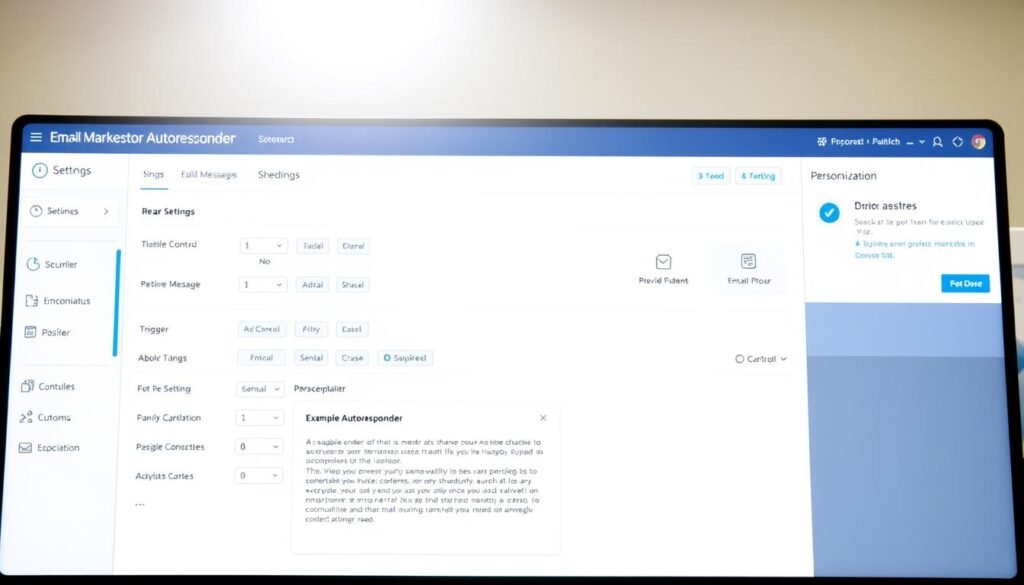
Optimize core settings to make your flows more relevant and measurable for real marketing results.
Segmentation and list targeting let you send the right emails to the right people. Filter your list by source, interest, or lifecycle so each message matches subscriber intent. This reduces fatigue and raises engagement.
Conditional logic and personalization
Use conditional logic to branch messages based on actions or demographics. Send one path to contacts who clicked a link and a different path to those who didn’t.
Personalization based on behavior increases relevance and conversion potential.
A/B testing and measurement
Test one element at a time—subject line, preheader, or CTA—to isolate what moves opens and clicks. Monitor the autoresponder tab for opens, clicks, and unsubscribes to decide which variant wins.
Drip scheduling and send time options
Choose immediate delivery for confirmations and time-sensitive emails. Use "same time signed up" for nurturing flows to preserve subscriber habits across time zones.
- Calibrate spacing: tighter early, wider later for high-intent funnels.
- Authenticate sending domain (SPF/DKIM) and maintain list hygiene to protect deliverability.
| Feature | Why it matters | When to use | Key metric |
|---|---|---|---|
| Segmentation | Improves relevance and lowers unsubscribes | New leads, interest-based campaigns | Open & click rate |
| Conditional logic | Personalizes path after behavior | Post-click journeys, re-engagement | Conversion rate |
| A/B testing | Identifies effective subject and content | Subject line and CTA experiments | Lift in opens/clicks |
| Drip timing | Balances frequency and fatigue | Welcome vs. nurture sequences | Unsubscribe rate |
Make sure you document wins and keep a control sequence for benchmarks. For additional practical details and common complaints, see this detailed review.
Subject line and content tips that boost engagement
Start with a subject that tells the reader exactly what to expect and why it matters right now. A clear subject line sets the promise and increases opens. Keep it specific, honest, and aligned with the first screen of the email.
Write clear, compelling subject lines
Use emojis thoughtfully. Emojis can raise open rates for some audiences, but test variants to see what works. Craft short lines that preview value and avoid clickbait.
Keep copy concise and personalize
Front-load benefit and use the subscriber’s name early. Short paragraphs and simple lines help scanners. Include one primary CTA above the fold and a single secondary link later.
- Make emails engaging: use bullets, bold key phrases, and a single clear action.
- Include a quick example or social proof to build credibility, then tie it to the CTA.
- Test two subject variants, document results, and roll forward winners to improve future emails.
In the editor, start from scratch with a blank template, add left-aligned text blocks, and make sure mobile fonts and white space render well. When appropriate, reference the getresponse autoresponder tools and use getresponse features to track opens and clicks for smarter email marketing.
Conclusion
Before you publish, double-check the calendar "On day" entries, timing preferences, and list assignments to ensure each message reaches the right subscribers.
Confirm whether sends are immediate or set to the same time signed up, then click create where needed, click save, and use the Save and Publish button to activate the flow.
Monitor opens, clicks, and unsubscribes in the tab for quick feedback. Use segmentation, conditional logic, and A/B tests to improve subject lines and CTAs over time.
Keep cadence steady (for example, day 0, day 2, day 4), maintain list hygiene, authenticate your sending domain, and document each name and list so anyone on your team can recreate the process.
Build once, iterate with data, and let this email marketing tool handle routine sends while you refine strategy.